
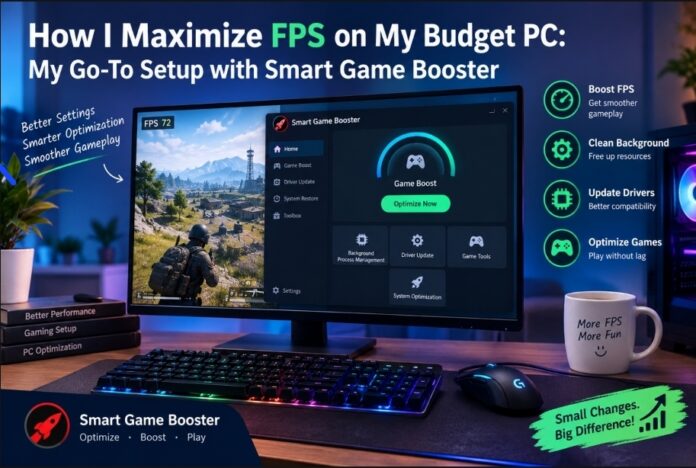

I enjoy PC gaming, but I have never had the luxury of owning an expensive gaming setup. My computer handles everyday tasks reasonably well, but demanding games sometimes push its limits. I used to experience sudden FPS drops, stuttering, and slow responses, especially when several applications were running in the background.
Upgrading my graphics card or buying a new PC was not an option at the time. Instead, I decided to improve the performance of my existing system through better settings and smarter resource management. After trying a few adjustments, I found that Smart Game Booster became a useful part of my gaming routine.

I Started by Understanding My PC’s Limitations
Before changing anything, I wanted to understand why my games were struggling. I noticed that performance was not always consistent. Some games ran smoothly at the beginning but started lagging after I had been playing for a while.
I checked my available storage, closed unnecessary applications, and reviewed the graphics settings in my games. I also made sure my Windows system and essential drivers were updated.
One thing I learned was that not every FPS problem comes from the graphics card. Background applications, outdated drivers, high graphics settings, and limited system resources can also affect gameplay.
Where Smart Game Booster Made a Difference
I wanted something that could make preparing my PC for gaming easier. That was when I decided to try Smart Game Booster.
The software is designed to help optimize a PC for gaming by managing unnecessary background processes and providing gaming-related system tools.
What I appreciated was having several useful options in one place. Instead of manually checking everything before every gaming session, I could use the available optimization features to prepare my system.
I also found its driver-related tools useful as a reminder to pay attention to hardware drivers. Graphics and other device drivers can influence compatibility and performance, so keeping them updated is an important part of PC maintenance.
My Approach to Getting Better FPS
I did not expect one application to turn my budget computer into a high-end gaming machine. My goal was to get the best possible experience from the hardware I already owned.
Here is the routine I gradually developed:
- Check background activity: I close unnecessary applications before starting a demanding game.
- Adjust graphics settings: I lower settings that put too much pressure on my hardware.
- Review driver updates: I check whether important graphics and device drivers need attention.
- Use game optimization: I run the available optimization features in Smart Game Booster when preparing for a gaming session.
- Monitor gameplay: I pay attention to FPS consistency, temperature, and stuttering instead of judging performance by one short session.
Following these steps helped me understand which adjustments actually benefited my PC.
Why I Consider It a Useful FPS Booster
For me, a good FPS Booster should help improve the overall gaming experience rather than promise unrealistic performance numbers.
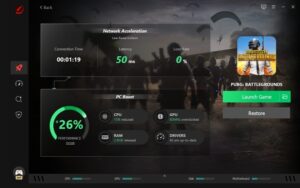
Smart Game Booster offers optimization features that can help reduce unnecessary resource usage and prepare a system for gaming. Notably, its dedicated Performance feature works behind the scenes to optimize system configuration, prioritize essential gaming threads, and tweak hardware settings for maximum efficiency. However, the overall results still depend on the computer’s hardware, the game being played, and its graphics settings.
I found it most useful as part of a broader optimization routine. While the Performance mode did not replace hardware upgrades or guarantee a specific frame rate, it provided a quick, reliable way to maximize system responsiveness and manage background resources before launching my favorite games.
Pros
- Convenient gaming optimization features
- Helps manage unnecessary background activity
- Includes useful driver-related tools
- Makes routine PC preparation easier
- Suitable for users working with limited hardware
Cons
- Results depend on the PC’s hardware and game requirements
- Cannot replace a necessary hardware upgrade
- Graphics settings may still require manual adjustment
The Settings I Avoid Overdoing
One mistake I made earlier was lowering every graphics setting without considering the visual difference. Although this can improve performance in some games, it can also make the experience less enjoyable.
Now I focus on balancing visual quality and smooth gameplay. I adjust demanding settings first and keep the options that do not significantly affect performance.
I also avoid unnecessary system tweaks. Changing advanced Windows settings without understanding their purpose can create problems instead of solving them.
My Final Thoughts
Gaming on a budget PC requires realistic expectations, but that does not mean I have to accept every performance issue. A few careful adjustments, regular maintenance, and better resource management can make an existing system more comfortable to use.
My experience with Smart Game Booster showed me that optimization software can be a convenient addition to a gaming setup. Combined with sensible graphics settings and updated drivers, it helped me develop a more organized approach to getting the most out of my PC.
I still understand that hardware sets the ultimate performance limit. However, before spending money on an upgrade, I prefer to make sure I am already using my current system efficiently.