
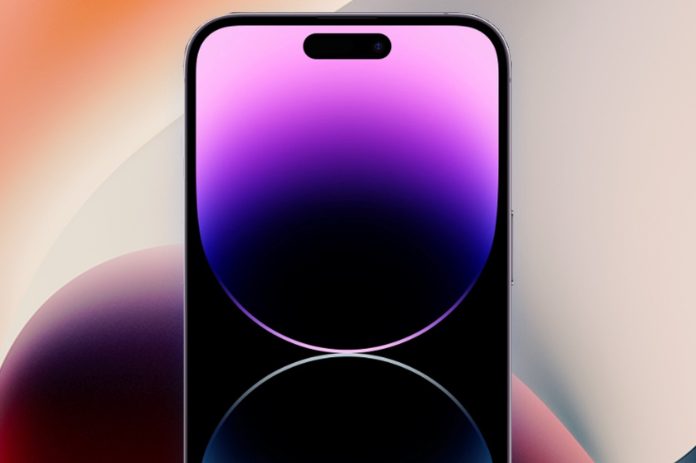

The iPhone 16 is one of the most advanced smartphones Apple has released, featuring state-of-the-art hardware and software integration. One small but crucial feature is the proximity sensor, which automatically turns off your screen when you hold the phone near your ear during a call. This prevents accidental touches on the screen, saving battery and avoiding unintended actions.
However, many iPhone 16 users in Pakistan and around the world report issues where the proximity sensor stops working. This can be frustrating, especially when making calls, using voice notes, or accessing apps during calls. In this guide, we will explore why this happens, provide quick fixes, and offer preventive measures to keep your iPhone 16 working perfectly.
Understanding the iPhone 16 Proximity Sensor
The proximity sensor is located near the front camera at the top of your iPhone. Its primary job is to detect when the phone is close to your face. During a phone call, it turns off the display to prevent accidental touches and also helps conserve battery life.
Unlike older models, the iPhone 16 uses advanced sensors and AI integration to detect proximity more accurately. This makes it faster, but it also means the sensor can be sensitive to external factors like dirt, cases, and software glitches.
Common Reasons Why the iPhone 16 Proximity Sensor Stops Working
Screen Protector or Case Interference
One of the most common reasons for a non-functioning proximity sensor is obstruction. Thick screen protectors, tempered glass with uneven edges, or poorly designed phone cases can block the sensor partially or entirely. Even a small obstruction can cause inconsistent performance.Software Glitches and iOS Bugs
Apple regularly updates iOS to fix bugs, but sometimes updates can unintentionally cause new issues. Software glitches, background apps, or corrupted settings can interfere with the sensor.Dirt, Dust, or Moisture
Even tiny particles of dust, dirt, or oil from fingerprints near the sensor can prevent it from working properly. Moisture from sweat, rain, or accidental water exposure can also temporarily disable the sensor.Hardware Damage
Physical damage, such as drops, bumps, or water exposure, can permanently affect the sensor. In such cases, a hardware replacement may be required.Third-Party App Interference
Some apps, especially those that access the front camera or screen, may conflict with the sensor. This is more common with apps that overlay graphics on your screen during calls.
How to Quickly Fix the iPhone 16 Proximity Sensor
Here are detailed steps to fix the problem at home:
1. Restart Your iPhone
A simple restart often solves temporary glitches. Press and hold the side button and either volume button until the slider appears, then slide to power off. Wait 10-15 seconds and restart your iPhone. This can refresh the system and restore sensor functionality.
2. Check for iOS Updates
Apple frequently releases updates to improve performance and fix bugs. Go to Settings > General > Software Update and install any available updates. Running the latest iOS version ensures your phone has the most stable software for sensors.
3. Clean the Sensor Area
The proximity sensor is sensitive to dirt and moisture. Use a soft, dry microfiber cloth to clean the area near the front camera. Avoid using harsh chemicals or abrasive materials. Even small smudges can block the sensor.
4. Remove Screen Protector or Case
If you recently applied a new screen protector or phone case, remove it and test the sensor. Opt for Apple-certified or high-quality protectors that do not cover the sensor area.
5. Reset All Settings
If the sensor still doesn’t work, you may need to reset your iPhone’s settings. Go to Settings > General > Transfer or Reset iPhone > Reset > Reset All Settings. This will reset preferences like Wi-Fi, Bluetooth, and display settings but won’t delete your data.
6. Force Close Apps
Sometimes, third-party apps can interfere with the sensor. Swipe up from the bottom (or double-press the home button on older models) to see running apps and close them. Test if the sensor works after closing apps.
7. Restore iPhone via iTunes
For persistent software issues, backup your iPhone and restore it using iTunes. This removes all software-related problems and ensures a fresh start. Make sure to backup your data to iCloud or your computer before restoring.
Advanced Troubleshooting
If the basic steps don’t work, try these advanced solutions:
Check Face ID Calibration: Sometimes recalibrating Face ID can improve sensor performance since the sensor and camera system work together. Go to Settings > Face ID & Passcode and reset Face ID if needed.
Diagnostic Test: Apple service centers can run hardware diagnostics to check if the sensor is faulty.
Safe Mode Check: Boot your iPhone in a limited mode to see if third-party apps are causing the issue.
When to Contact Apple Support
If none of the steps work, it’s likely a hardware issue. Common signs include:
Sensor stops working after a drop or water exposure
Face ID or camera performance is affected
Screen turns on and off unpredictably during calls
In these cases, contact Apple Support or visit an authorized service center. Attempting DIY repairs on the sensor can void your warranty.
Preventing Proximity Sensor Issues in the Future
Use High-Quality Cases and Screen Protectors: Low-quality accessories can block the sensor. Stick to Apple-certified products.
Keep Your iPhone Clean: Regularly wipe the front camera area and sensor zone with a microfiber cloth.
Install Updates Promptly: Updating iOS ensures your phone has the latest bug fixes.
Avoid Water Exposure: Keep your iPhone away from water or high moisture areas. Even minor splashes can affect the sensor.
Restart Regularly: Restarting your iPhone occasionally helps maintain smooth performance.
Common Myths About Proximity Sensor Problems
“Only broken hardware causes sensor issues” – False. Most problems are software-related and can be fixed at home.
“Third-party screen protectors always work” – False. Low-quality protectors can block the sensor.
“Resetting iPhone deletes all data” – False. Resetting all settings does not delete apps or media. Only a full restore erases data.
Conclusion
A malfunctioning iPhone 16 proximity sensor can disrupt your daily usage, but most issues are fixable. Cleaning the sensor, checking for iOS updates, removing obstructive cases, and resetting settings usually resolves the problem. For hardware-related issues, professional support is the safest option. Following preventive tips ensures your iPhone sensor works efficiently for years.
By understanding the causes and solutions, you can quickly fix the iPhone 16 proximity sensor not working issue and enjoy a seamless calling experience without interruptions.